How to run an AI image generator locally, free and offline
An AI image generator turns a few words into a picture. With an online generator, the model runs on the service's servers, and you pay with credits or wait for a daily limit. You can run open image models such as Z-Image Turbo, FLUX.2 klein and Qwen-Image on your own device instead: free, with no limit, and with no internet connection once they are downloaded.
This guide shows how to make and edit pictures on your own device with Image studio, a free app for Hearthscale on Windows and Linux. It shows which models to choose for your graphics card, how long a picture takes, and the other ways to run image models locally. The sources of every number are at the end.
TL;DR
- Install Hearthscale and Image studio, then choose Make. Download the image model recommended for your device when you first open Image studio. Hearthscale Server installs the program that runs it. See the steps.
- Start with Z-Image Turbo or FLUX.2 klein 4B. Both are licensed under Apache 2.0, which allows commercial use, and their files at 4 bits take 3.68 GB and 2.46 GB. See Which model to choose.
- A graphics card with 4 GB of memory can be enough. The documentation of stable-diffusion.cpp, the program that runs image models in Hearthscale, states that Z-Image runs on graphics cards with 4 GB. More memory lets you use larger models. See Graphics memory.
- It costs nothing and works offline. There are no credits and no daily limit, and you need no account. Your words and pictures stay on your own devices.
Getting started
Install Hearthscale and Image studio
Download Hearthscale and install it on your Windows or Linux device. Hearthscale Server comes with it and installs stable-diffusion.cpp, so there is nothing to set up by hand. Then find Image studio in the Marketplace and choose Install.
Download a model
When you first open Image studio, download the image model recommended for your device. A model too large for your device is never recommended. For another model, open the model picker under the prompt and choose Get more models. This opens the Server, where you can search Hugging Face, the site where open models are shared, and download any image model that stable-diffusion.cpp runs. The Server finds the extra files each model needs, such as a text encoder, and downloads them with it.
Write what you want to see
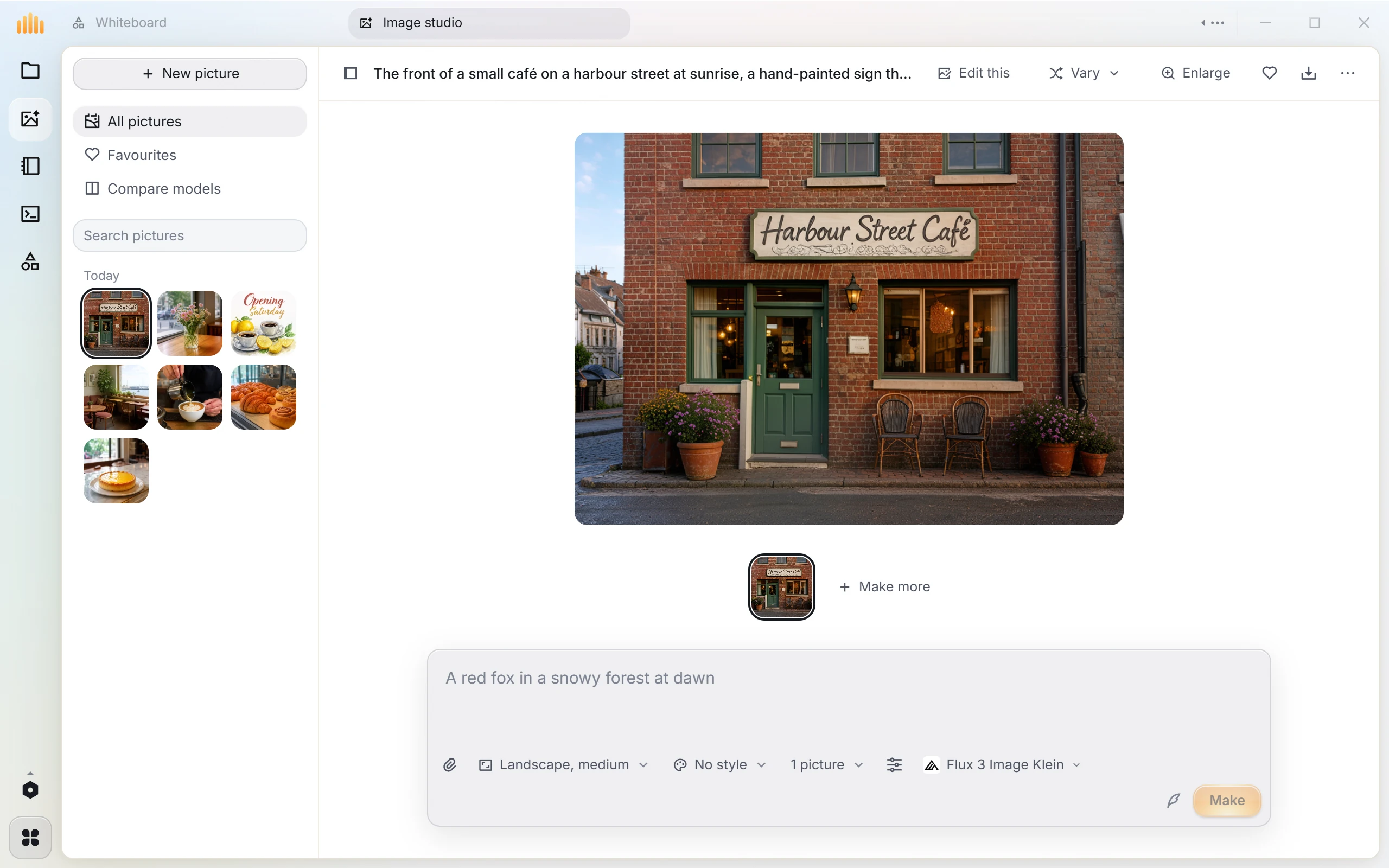
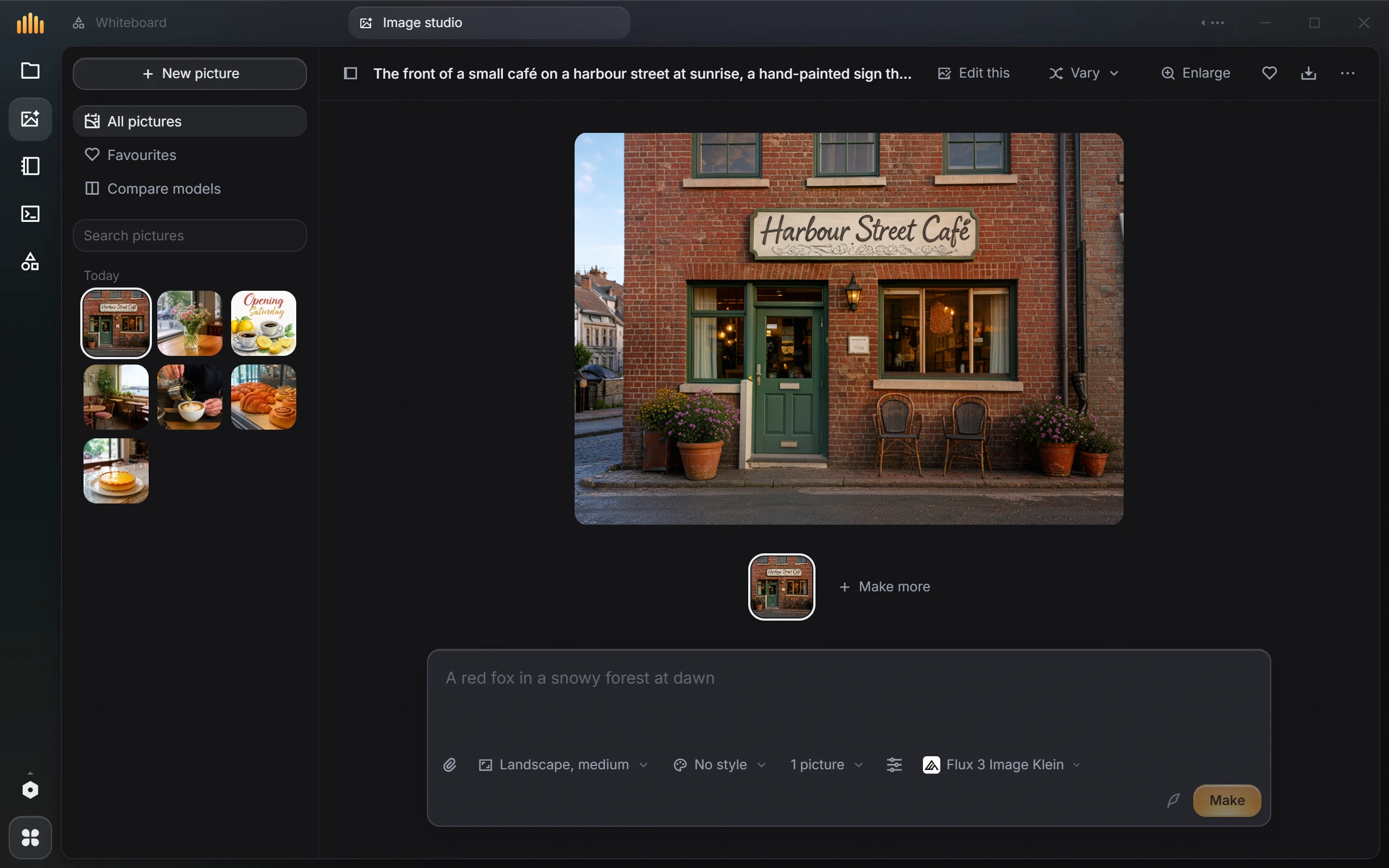
Describe the picture and choose Make. Pick its shape and size, and a style such as Photo, Watercolour or Pixel art if you like. Then choose Vary to change a picture a little or a lot, or Make more for more like it. Every picture stays in your library, where you can keep favourites, search, and save or copy any picture.
Editing photos
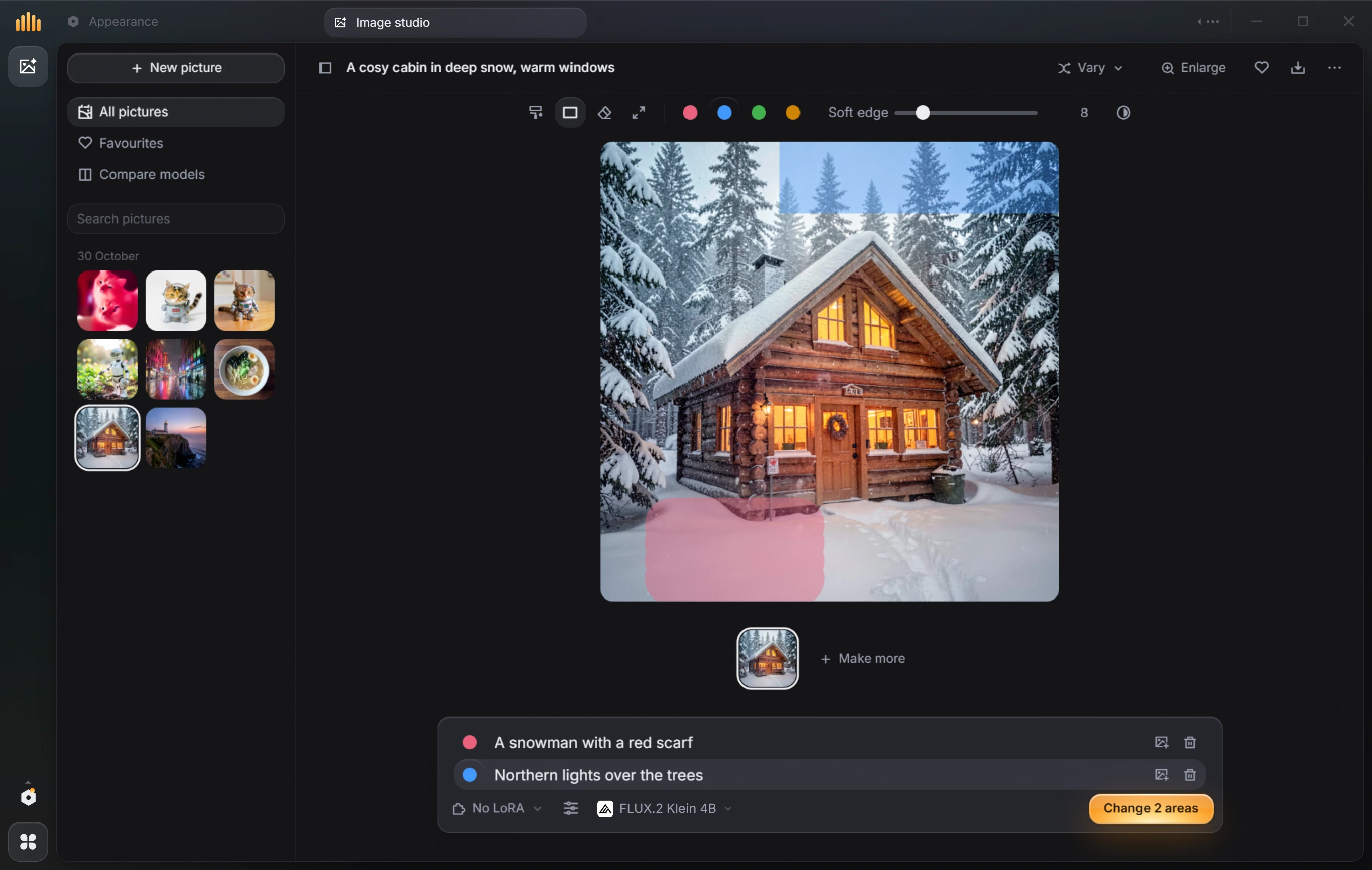
Open a photo of your own, or a picture you made, and say what to change, such as the season or the light.
- Mark a part. Paint over a part with the brush, or draw a box, in up to four colours. Say what goes in each colour, or leave it empty to remove what is there. Every pixel outside the marks stays as it was.
- Quick changes. With a model made for editing, such as Qwen-Image-Edit or FLUX.1 Kontext, one press removes all text, removes the interface of a game or an app, removes the background, or makes it night.
- Extend a picture past its edges, or Enlarge it into a larger, sharper copy with an upscale model.
- Before and after. Slide a line across a changed picture to see how it was before.
To change the style of the pictures, add a LoRA adapter compatible with the model, which you download in the Server as you download a model. Each picture in your library holds its prompt and settings, which other image tools can read. To leave them out, turn off Save the prompt and settings in each picture in Settings → Apps → Image studio.
Which model should you use?
stable-diffusion.cpp reads a model from a GGUF file, at a precision such as 4 or 8 bits for each weight. A 4-bit file is about half the size of an 8-bit one. The table lists models from Qwen, Tongyi-MAI, Black Forest Labs and Krea, the newest last, with the steps a picture takes.
| Model | Steps | 4-bit file | 8-bit file | Licence |
|---|---|---|---|---|
| Qwen-Image and Qwen-Image-Edit-2511 | 50 and 40 | 11.85 GB | 21.76 and 22.35 GB | Apache 2.0 |
| Z-Image Turbo | 8 | 3.68 GB | 6.58 GB | Apache 2.0 |
| FLUX.2 klein 4B | 4 | 2.46 GB | 4.30 GB | Apache 2.0 |
| FLUX.2 klein 9B | 4 | 5.62 GB | 9.98 GB | FLUX Non-Commercial |
| Krea 2 Turbo | 8 | 7.22 GB | 13.63 GB | Krea 2 Community |
| Qwen-Image 2.1 | 40 | 4.20 GB | 7.69 GB | Qwen Research |
| FLUX 3 Image Klein | 16 | 3.51 GB | 6.15 GB | FLUX Kommunity |
Each model also needs a text encoder, a language model that reads your words, and a VAE, which turns the result into pixels. At 4 bits, the text encoder takes about 2.5 GB for Z-Image Turbo, FLUX.2 klein 4B, Krea 2 and FLUX 3 Image Klein, and about 5 GB for FLUX.2 klein 9B, Qwen-Image and Qwen-Image 2.1.
- For photos: Z-Image Turbo. Its makers state that it "excels in photorealistic image generation", and a picture takes only 8 steps.
- For the smallest file: FLUX.2 klein 4B, with 4 billion parameters and 4 steps. It also takes reference pictures, for an edit that follows them.
- For words in the picture, and precise edits: Qwen-Image and Qwen-Image-Edit, made for "complex text rendering and precise image editing". With 20 billion parameters, their files are large: choose them with a graphics card of 16 GB or more.
- The newest models: Krea 2 (June 2026, 12 billion parameters), Qwen-Image 2.1 (September 2026, which also edits pictures) and FLUX 3 Image Klein (October 2026, for making and editing pictures). Their licences limit commercial use.
- Older and smaller: Stable Diffusion 1.5 and SDXL run too. Their full files take 4.27 GB and 6.94 GB.
Licences and commercial use
Apache 2.0 allows commercial use. The FLUX Non-Commercial License and the Qwen Research License allow no commercial use of the model, although the FLUX licence lets you use the pictures for any purpose, commercial ones included, within its terms. The FLUX Kommunity License allows commercial pictures only for users with less than US$5 million in yearly revenue, and the Krea 2 Community License allows any commercial use only for those with less than US$1 million. Where a model's licence limits commercial use, a note in the model picker of Image studio names that licence. Read the licence on the model's Hugging Face page before you sell or publish a picture.
How much VRAM do you need?
A picture comes fastest when the graphics card holds the whole model. As a rule of thumb, choose a model whose file is smaller than your graphics memory. Before you download a file in the Server, a mark under it shows whether your graphics card can hold all of the model or part of it, or whether the file is likely too large for your device.
- 4 GB: FLUX.2 klein 4B at 4 bits, or Z-Image Turbo. For 4 GB, stable-diffusion.cpp's guide recommends Z-Image Turbo at Q4_0 or Q3_K.
- 8 GB: Z-Image Turbo, FLUX.2 klein 4B and FLUX 3 Image Klein at 8 bits, or FLUX.2 klein 9B and Qwen-Image 2.1 at 4 bits.
- 12 GB: FLUX.2 klein 9B and Qwen-Image 2.1 at 8 bits, or Krea 2 Turbo at 4 bits.
- 16 GB and more: Qwen-Image and Qwen-Image-Edit at 4 bits, and Krea 2 Turbo at 8 bits.
When the graphics card has no room for the text encoder and the VAE beside its work, they stay in system memory. A larger picture needs more memory and more time. The Server can draw a picture in tiles to need less graphics memory.
AMD, Intel and NVIDIA cards
Hearthscale Server first installs the Vulkan build of stable-diffusion.cpp, which runs on NVIDIA, AMD and Intel graphics cards, and on the integrated graphics of many processors. On Windows with an NVIDIA graphics card, the Server then installs the faster CUDA build in the background. Local LLMs on NVIDIA GPUs compares the two for chat models, card by card. For an AMD graphics card, see Run local AI on an AMD GPU, which compares Vulkan and ROCm for chat models, and for an Intel one, Run local AI on an Intel Arc GPU.
How long does a picture take?
Image models are limited by computation, where chat models are limited by the speed of memory. A contributor to stable-diffusion.cpp puts it this way: "Diffusion models are mostly bottlenecked by the compute power, reducing the size of the model doesn't help that much, unlike with LLMs which are mostly bottlenecked by the memory bandwidth." So the speed of your graphics card matters most, and a 4-bit file is not much faster than an 8-bit one.
The time grows with the number of steps and with the size of the picture. These are times that users and developers reported in stable-diffusion.cpp's own discussions, with the build of their day:
| Graphics | Model | Size and steps | Time |
|---|---|---|---|
| GeForce RTX 5070 Ti Laptop GPU, CUDA | FLUX 3 Image Klein, 8 bits | 1024 × 1024, 16 steps | 12.7 s to draw |
| Radeon RX 7800 XT, ROCm | FLUX.2 klein 4B | 1024 × 1024, 4 steps | 10.3 s |
| Radeon RX 7800 XT, Vulkan | FLUX.2 klein 4B | 1024 × 1024, 4 steps | 15.9 s |
| GeForce RTX 2070 | Z-Image Turbo, 3 bits | 512 × 512 | 1.19 s per step |
| GeForce RTX 3050 Laptop GPU | Z-Image Turbo | 512 × 512 | 2.17 s per step |
| Radeon RX 580 4 GB, Vulkan | Z-Image Turbo | 512 × 512 | 20 s per step |
| Core Ultra X7 358H, integrated Arc graphics, Vulkan | FLUX.2 klein 4B, 4 bits | 512 × 512, 4 steps | 23 s |
| Core Ultra 7 268V, integrated graphics, Vulkan | SDXL, 4 bits | 1024 × 1024, 7 steps | 63 s |
These are not a controlled test: each person used their own settings, and newer builds have changed the speed on some graphics cards. A larger picture takes much longer: on the Core Ultra X7 358H, a picture of 768 × 768 took 70 seconds where 512 × 512 took 23.
Without a graphics card
Without a graphics card, pictures are made on the processor, and they take much longer than on a graphics card. To keep the wait short, choose a model that needs few steps, such as FLUX.2 klein 4B, make a small picture, and Enlarge the one you like. Integrated graphics help: the two Intel processors in the table made their pictures with Vulkan on the graphics built into them.
You can also use the graphics card of another device. Pictures are made on this device or on a Hearthscale Server you paired with it. Pair your laptop with the Server on your desktop, and make pictures on the laptop with the desktop's graphics card. The connection between them is end-to-end encrypted, with no port to open. See Hearthscale Server.
ComfyUI, Forge and other tools
| Program | Systems | Graphics | Install | How you work | Latest release |
|---|---|---|---|---|---|
| Image studio | Windows, Linux | NVIDIA, AMD, Intel, or the processor | Hearthscale's installer, then the Marketplace | A prompt, marks and quick changes | 0.3.0, 15 Nov 2026 |
| ComfyUI | Windows, Linux, macOS on Apple silicon | NVIDIA, AMD, Intel Arc, Apple silicon, or the processor | Comfy Desktop, a folder for Windows, or Python | A graph of nodes, or App Mode | 0.46.0, 18 Nov 2026 |
| Forge Neo | Windows; Linux and macOS from its wiki | NVIDIA; AMD through a guide by another author | Git and Python | A web page of settings | 2.33, 21 Nov 2026 |
| Invoke | Windows, macOS, Linux | NVIDIA, AMD on Linux only, Intel Arc, Apple silicon | A launcher | A canvas, and node workflows | 6.14.4, 3 Nov 2026 |
| Fooocus | Windows, Linux | NVIDIA; AMD in beta | An archive for Windows, or Python | A prompt, for SDXL only | 2.5.5, 12 Aug 2024 |
| Amuse | Windows only | NVIDIA with CUDA; AMD and Intel with Vulkan | An installer or a portable archive | A studio of tools | 3.8.7, 14 Nov 2026 |
- ComfyUI makes pictures, video, audio and more, and you build each workflow as a graph of nodes. Its README names Comfy Desktop, an installer, as the recommended way to install it. ComfyUI is licensed under GPL-3.0.
- Forge continues as Forge Neo, from another author: the original repository has had no change since July 2025. Forge Neo's README says that issues about AMD graphics cards "will simply be ignored".
- Invoke is maintained by its community since its founding team joined Adobe. The Community Edition is licensed under Apache 2.0.
- Fooocus is in "Limited Long-Term Support (LTS) with Bug Fixes Only", and its README states that there are "no current plans to migrate to or incorporate newer model architectures".
- Amuse uses stable-diffusion.cpp's Vulkan backend for AMD and Intel graphics, the same program that Hearthscale Server installs.
With Image studio, there is no Python to install and no graph to build: Hearthscale Server installs the program for your graphics card, and the same Server runs your chat, speech and music models.
Using the API
Hearthscale Server makes pictures through its local API too. Send model, prompt and size to POST /v1/images/generations, with the token from API & access in the Server window:
curl http://127.0.0.1:7283/v1/images/generations \
  -H "Authorization: Bearer $HEARTHSCALE_TOKEN" \
  -H "Content-Type: application/json" \
  -d '{"model": "YOUR_MODEL_ID", "prompt": "A red fox in a snowy forest at dawn", "size": "1024x1024"}'
The response is a jobId, not the picture. Read GET /control/renders/{jobId} until its state is completed, then read the PNG once from GET /control/renders/{jobId}/outputs/0. A job sent to POST /control/renders also takes a starting picture, a mask, reference pictures and LoRA adapters. See Images and Follow a job's progress.
New to local AI? Start with How to run AI locally on Windows and Linux. For more about making pictures with Hearthscale, see AI image generator, and for songs, AI music generator.
Download Hearthscale for Windows or Linux. Hearthscale and Image studio are free, and you need no account.
Sources
Read on 23 November 2026. File sizes are from the file lists of Hugging Face, in GB of 10⁹ bytes. The steps are those each model card names.
- Model cards: Z-Image-Turbo, FLUX.2 [klein] 4B, FLUX.2 [klein] 9B, Qwen-Image, Qwen-Image-Edit-2511, Krea 2 Turbo and the Krea 2 Community License, Qwen-Image-2.1 and its licence, FLUX 3 Image Klein, Stable Diffusion 1.5 and SDXL 1.0 base. The FLUX licence terms are from the FLUX.2 [klein] 9B and FLUX 3 Image Klein cards and the FLUX Non-Commercial License.
- Model files at 4 and 8 bits (Q4_0 and Q8_0, for Krea 2 Q4_K_M and Q8_0): Z-Image Turbo, FLUX.2 klein 4B, FLUX.2 klein 9B, Qwen-Image, Qwen-Image-Edit-2511, Krea 2, Qwen-Image 2.1, FLUX 3 Image Klein. Text encoders at Q4_K_M: Qwen3 4B and Qwen3-VL 4B, 2.50 GB; Qwen3 8B and Qwen3-VL 8B, 5.03 GB; Qwen2.5-VL 7B, 4.68 GB.
- stable-diffusion.cpp: README, Z-Image and Z-Image on a GPU with only 4 GB of VRAM. Times: pull request 2373 (November 2026, the sampling of the second picture), issue 1215 (January 2026, RX 7800 XT after its speed-up, at the size of the issue's first test, and Core Ultra X7 358H), discussion 1026 (December 2025) and issue 1151 (December 2025), with the quote on computation.
- Other programs: ComfyUI release 0.46.0, README and installation; Forge and Forge Neo; Invoke release 6.14.4, system requirements and invoke.ai; Fooocus; Amuse site and release 3.8.7.